To start, please follow the link to our online booking page.
Online Booking LinkWe will have several booking classes listed. Basically, the only difference you will notice between each booking class will be a price change.
Only Blueberry Hill members will have access to the "Members" option.
Click an option, and you will be taken to our online tee sheet, where you will need to register.

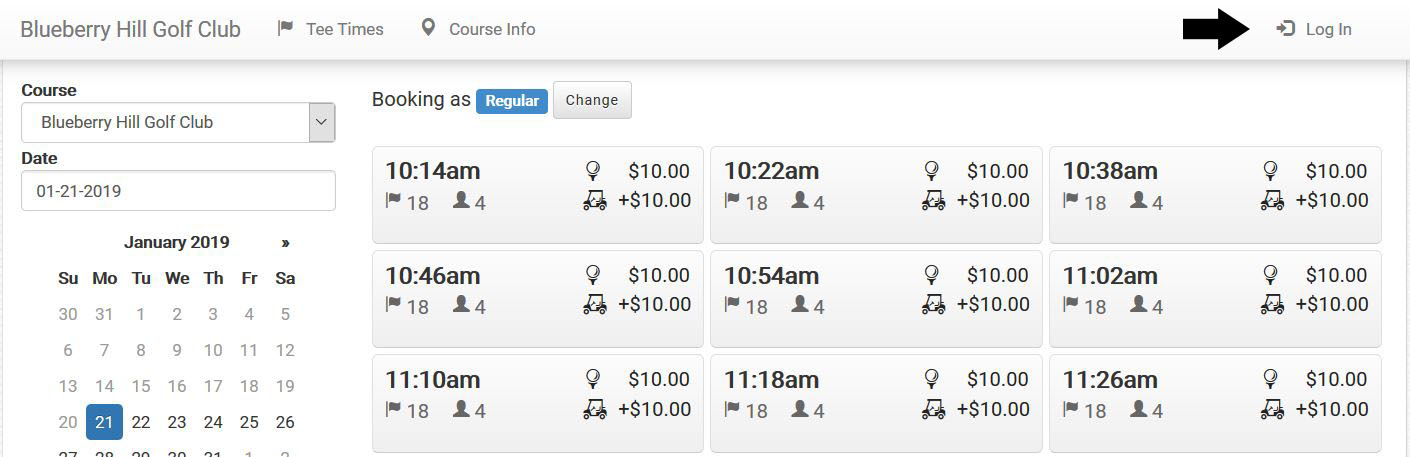
Next you'll need to click on the "Log In" link on the top right.
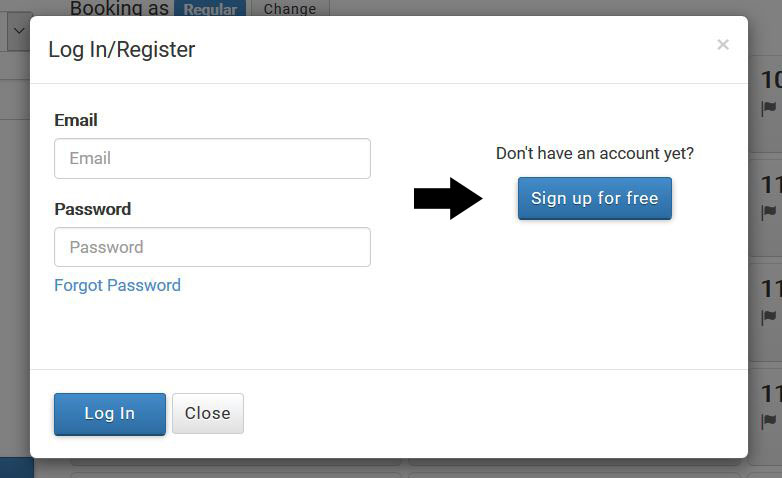
Next you will see the "Log In/Register" box. Since you first need to create your account, click on the "Sign up for free" button.
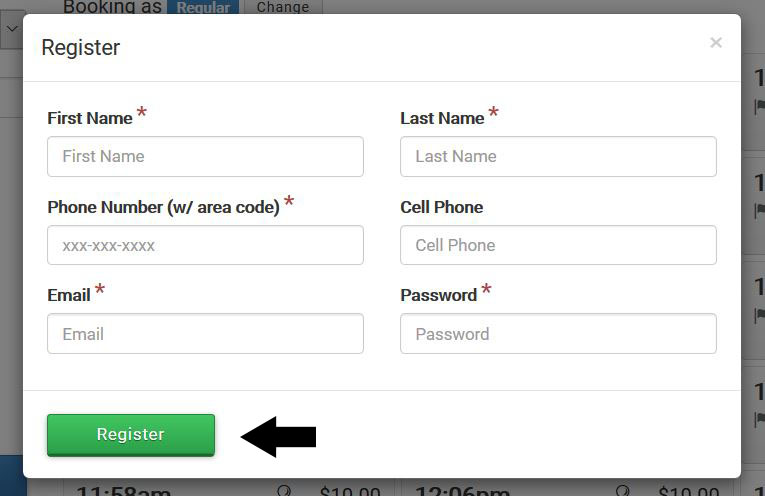
This will bring up the "Register" box for your information. The fields marked with an * will be required fields.
If you have both a landline and a cell phone number, please enter both. If you only have a cell phone number, you should enter that under the "Phone Number" field.
With your information entered, click the "Register" button.
After registration, you will be taken to your "My Account" page. As of now, we will only be using the (4) options marked with the arrows. A brief description of each one is provided below.
Also, you can access your account at any time after Log In, by clicking the "My Account" link on the top right.
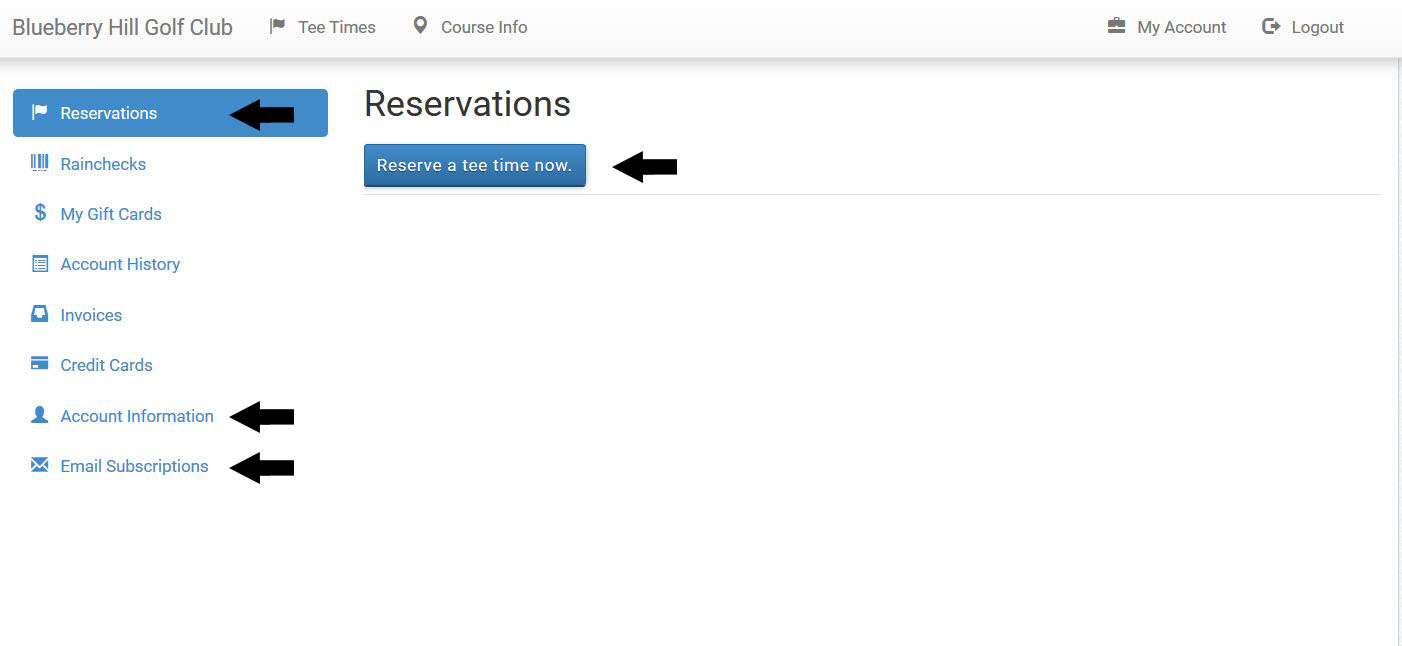
Clicking the "Reserve a tee time now" button, will take you to the booking page.
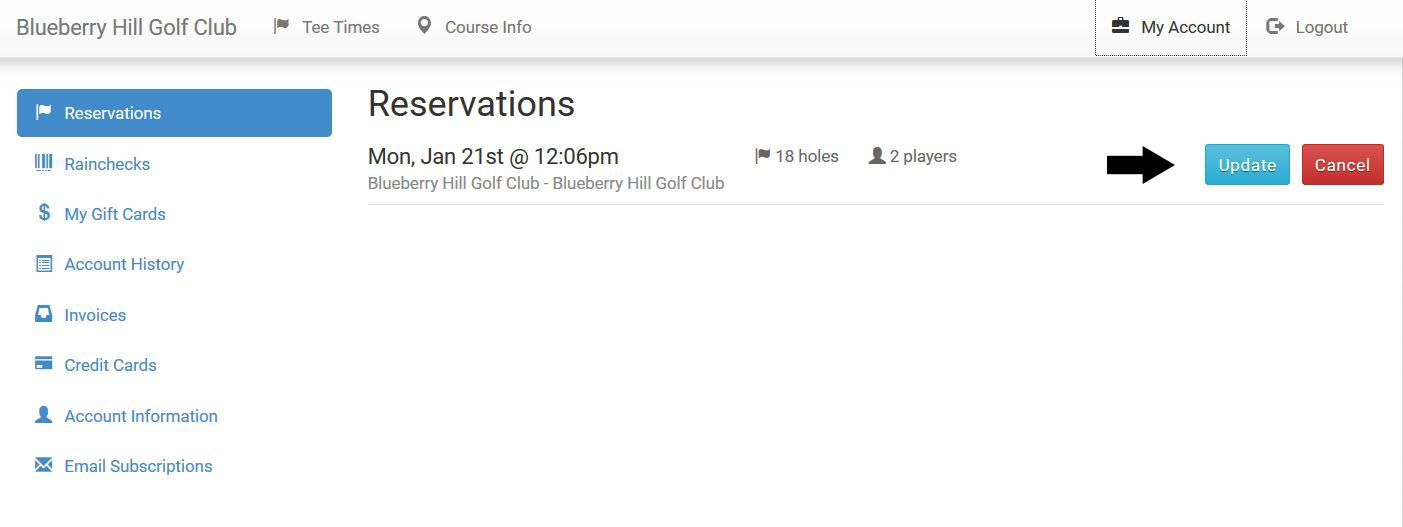
The "Reservations" link on the top left will show you any tee times you already have booked.
It will also give you the option to revise, or to cancel your tee time.
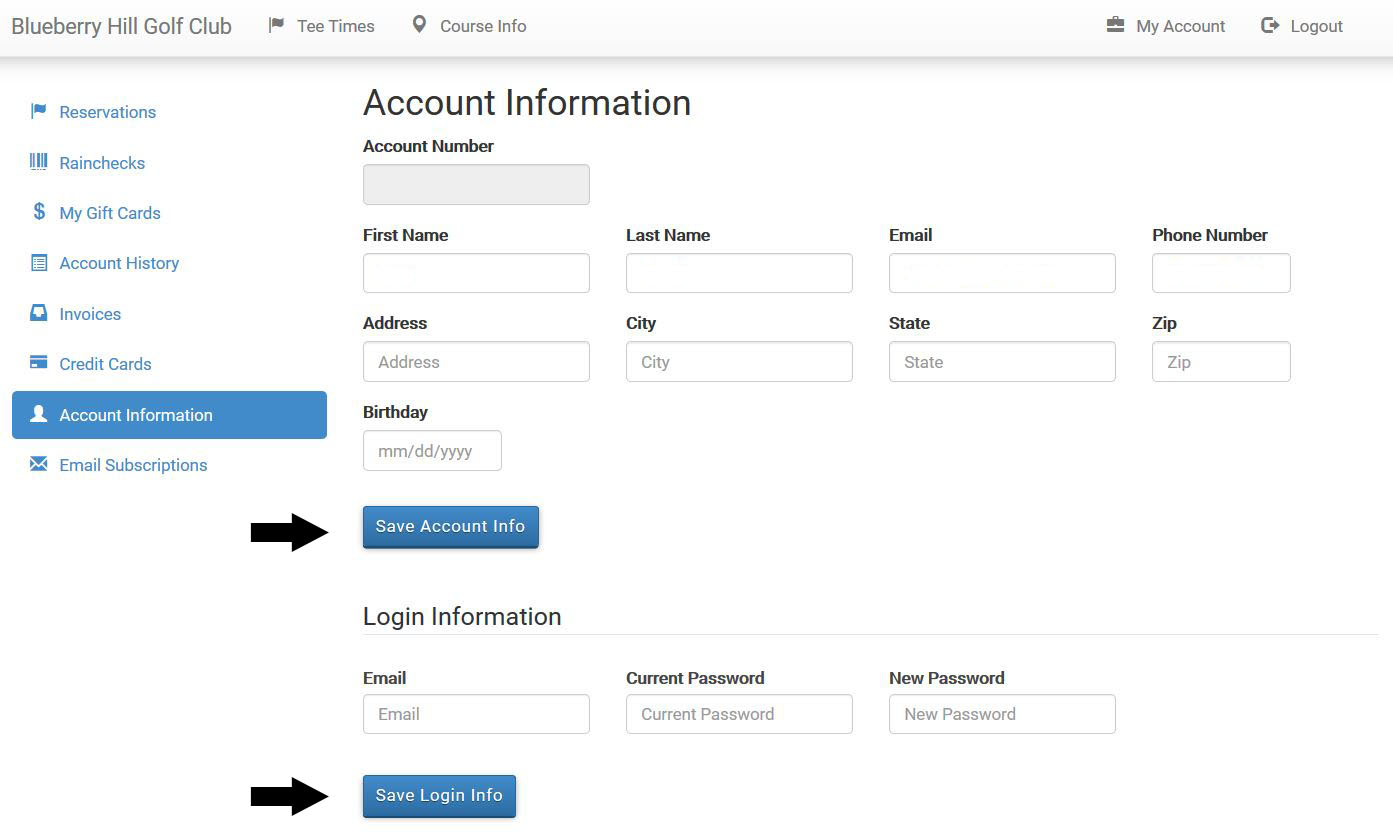
Next will be your "Account Information." From here, you can see, and edit any of your account information.
Simply edit any of the fields, then click the appropriate "Save" button.
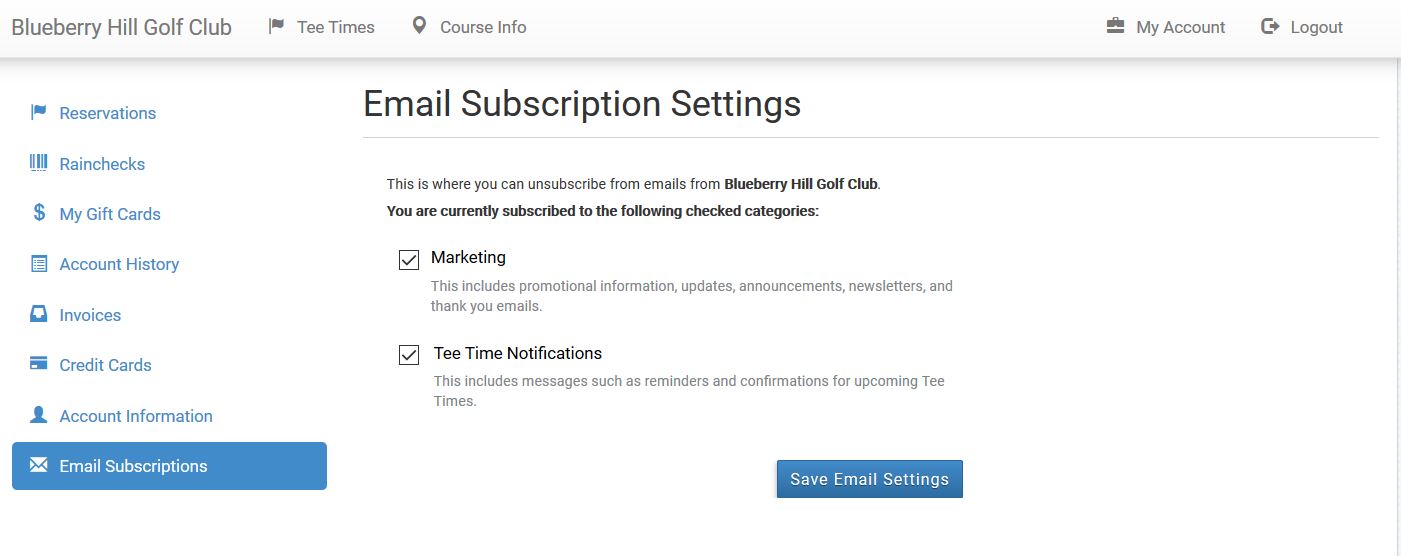
Under "Email Subscriptions," we ask you to please have both boxes checked. This will include you in any emails that Blueberry may send out, and it will also allow a confirmation email to be sent after booking a tee time.
The Booking Page
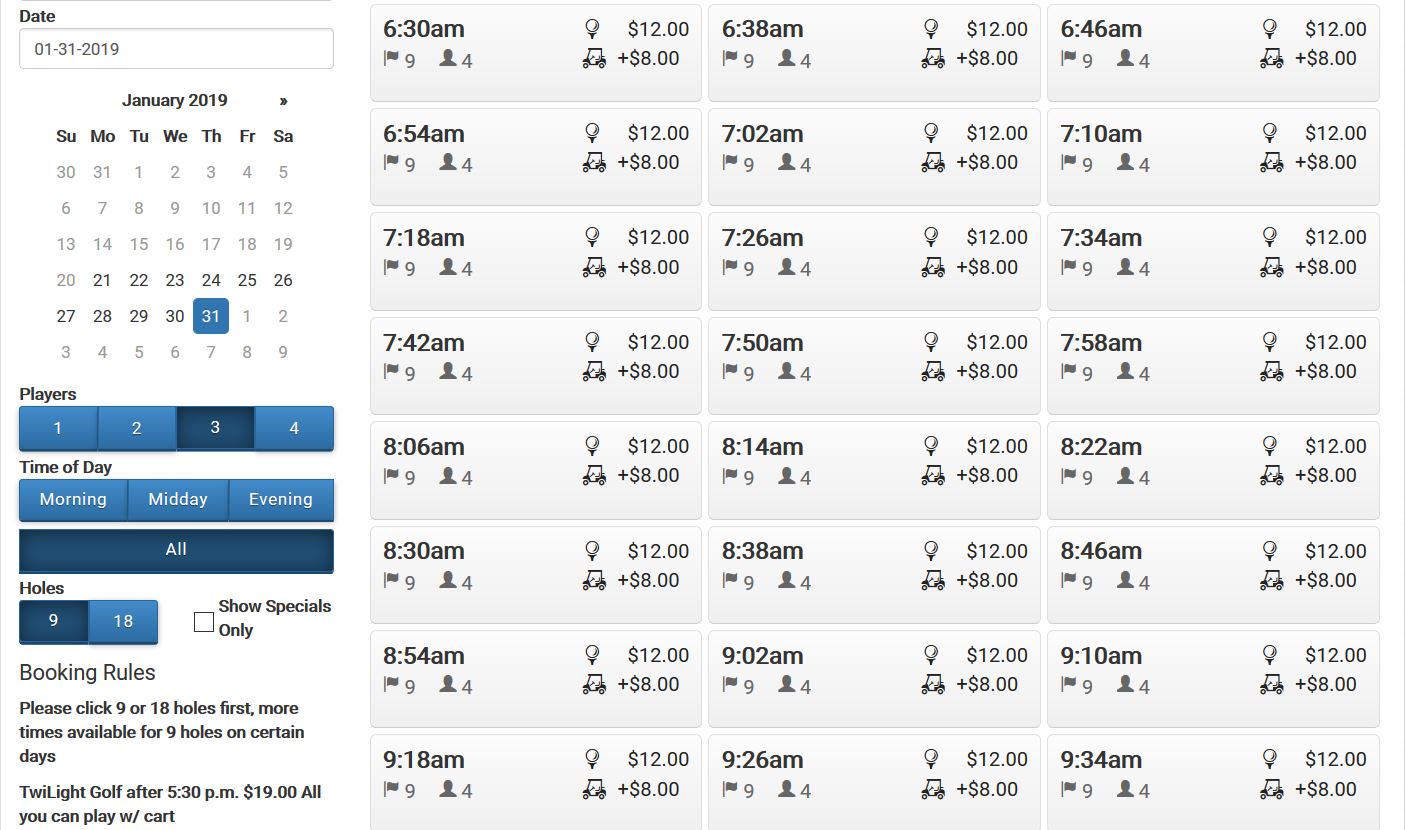
- Calendar - by default we will only allow booking up to (2) weeks in advance.
- Players - to choose the number of players for the booking.
- Time of Day - this will jump the tee sheet to the option selected, where "All" will show the tee sheet from open to close.
- Holes - to select the number of holes you'd like to play, and also to show the available tee times for each. On select days, there may be 9 hole times available, but not 18.
- Booking Rules - information pertaining to the booking sheet.
Please be advised that the information you provide is solely for use by the Blueberry Hill Golf Club. We will never share your information with a third party.